 31
31 0
0 0
0 12 April 2024
The Create Object with Geometry of Multiple Parcels tool is located in the Editing Tools Panel of the Attribute Table.
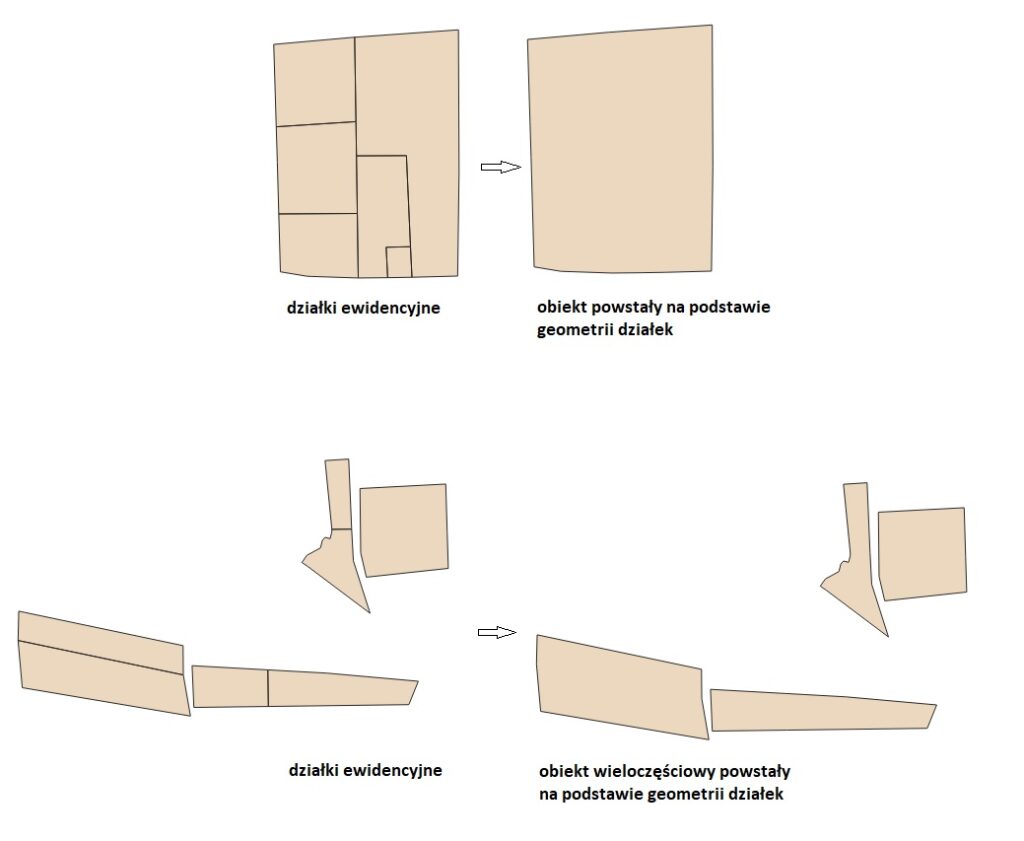
The tool allows you to create a new multipolygon object with the geometry of multiple cadastral parcels.
The tool allows you to create a multipart object – in the case of parcels that do not share a common boundary or a single-part object when the parcels are adjacent to each other.
How to use:
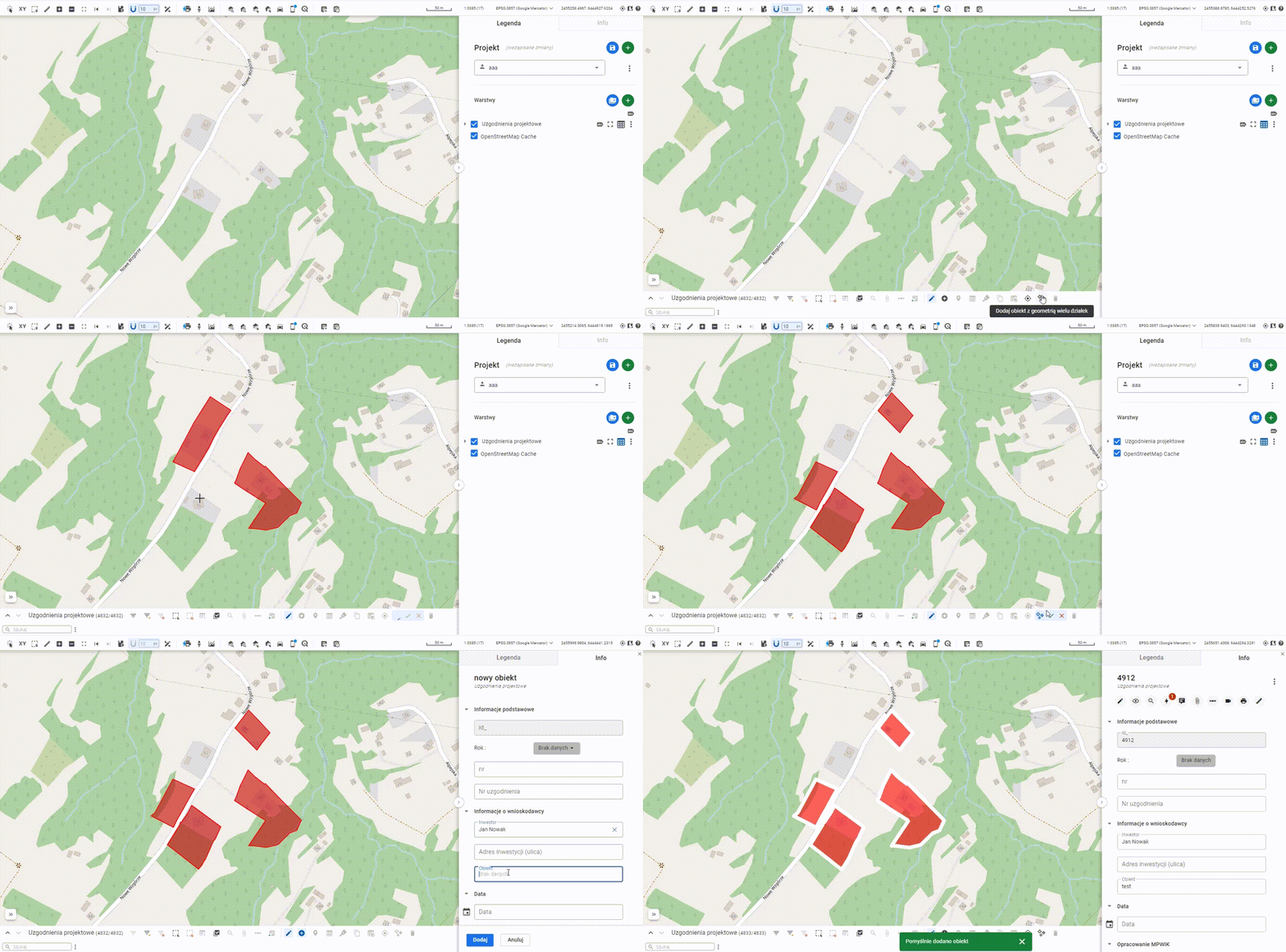
- Select the multipolygon layer in the Legend panel and open the attribute table.
- Enable edit mode (pencil icon) to activate the editing tools.
- Click the Create new object with geometry of multiple parcels tool icon.
- On the map, click the parcels that will form the new object. If you accidentally select a parcel, click it again to deselect it. Finish creating the geometry by clicking the green icon next to the active tool – „Add Object”. The red cross cancels the creation of the new object.
- Optionally, fill in the attribute card of the new object, then click Save.
Editing an existing object:
- Select the object from the multipolygon layer for editing.
- Click the Edit geometry tool.
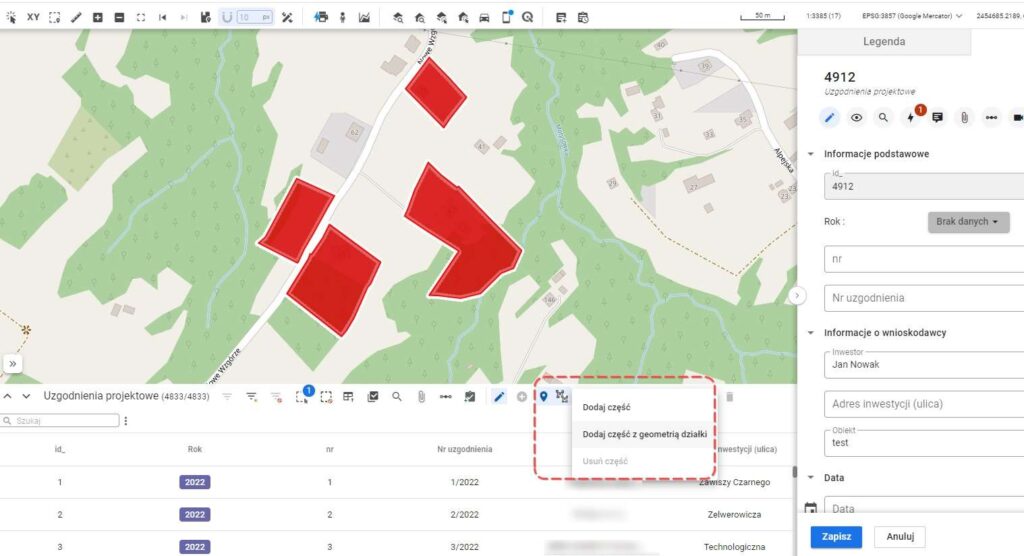
- Choose one of the options – „Add part” or „Add part with parcel geometry.” „Add part” allows you to draw the geometry manually. „Add part with parcel geometry” lets you copy the geometry of a selected parcel on the map.
- Optionally, fill in the attribute card of the new object. Click Save.