

 20
20 0
0 0
0 14 April 2026
The map is the main part of the system. The Map Panel consists of the following components:
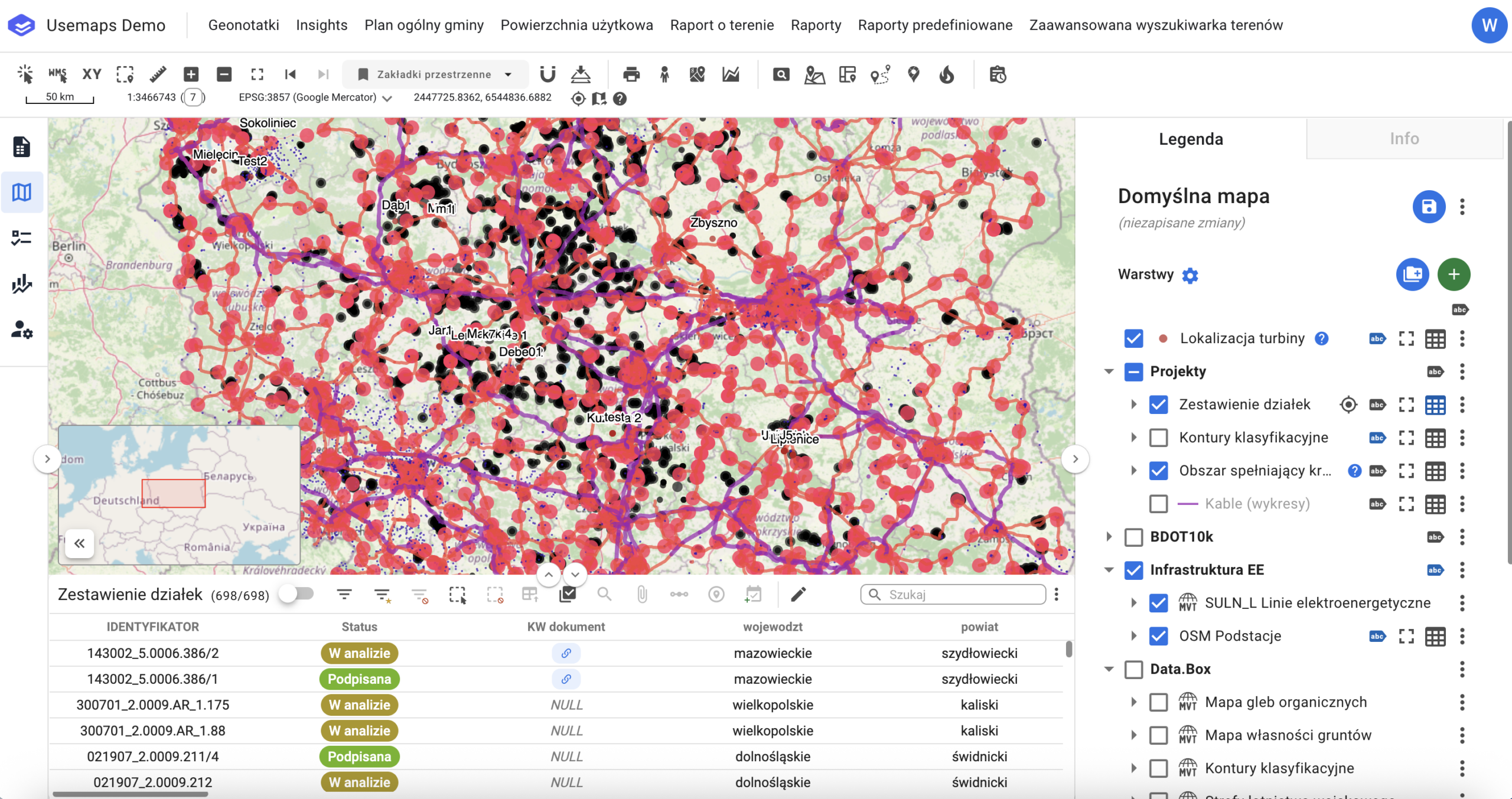
Nawigacja:
- Panel Menu
-
- System instance name
- Dropdown list of Additional Modules (the number and content depend on the system configuration)
- (Optional) Special buttons for additional modules.
- Tools Panel
- Identification tool
- Click coordinates tool
- Distance and area measurement tool
- Zoom in tool – zooms the map in by one scale level
- Zoom out tool – zooms the map out by one scale level
- Zoom to default project view tool
- Previous view tool – displays the previous map view
- Next view tool – displays the next map view (if the previous view tool was used earlier)
- Spatial Bookmarks Tool
- Printing tool
- StreetView Tool
- and other tools depending on the system configuration, such as:
- Select by Location
- Spatial Bookmarks
- Address Search (based on UUG from Geoportal or the Google Maps API)
- Cadastral Parcel Search
- Object Search
- Additionally, the tools panel contains
- Map Window. The map composition consists of Layers with user-defined Symbology. Most interactions between the System and the User take place in the map window using available tools. An element of the Map Window is the Overview Map, which is displayed in the bottom-left corner of the map.
- Map Composition Panel. The Map Composition Panel is part of the Map Panel where the User can manage their Maps. Panel tools:
- Add a new Map – creates a new Map that must be given a name.
- Save Map – saves the current settings (zoom, map scale, configuration of loaded layers, and layer symbology)
- Share Map – allows sharing the Map (read-only) with another System user
- Rename Map – changes the name of the Map
- Delete Map – removes the Map from the System.
- Legend Panel. The Legend Panel is a part of the Map Panel where you decide what is displayed in the Map Window. The Legend Panel consists of:
- Add Layer tool
- List of Layers along with Layer tools
- Information Panel
- Attribute Table. The Attribute Table also includes additional information and tools:
- Attribute table zoom tool – enlarges the attribute table by reducing the map window size.
- Attribute table shrink tool – reduces the size of the attribute table in favor of the map window.
- Layer name – displays the name of the layer whose features are shown in the attribute table.
- Object Counter
- Basic Filter Tool
- Advanced Filter Tool
- Clear filters tool – removes all filters applied to the layer.
- Selection Tool
- Clear selection tool – removes selection from objects.
- Tool show only selected objects.
- Tool select all objects
- Zoom to selected objects tool – zooms to the objects that have been selected
- Tool add attachment to selected objects
- [optional] Buffer tool
- Editing tools panel
- Quick search tool
- Additional tools available under the “Three dots” menu
- Download Data
- Tool reset column settings
- Additionally
- Setting column order
- Other tool resulting from additional module settings
-