 30
30 0
0 0
0 25 March 2026
A topic related to User Management.
- Go to: Administrator Panel -> Users
- In the „User Groups” section, select the appropriate group and click the three dots on the right side of its name.
- Click „Manage Permissions.” A new window will open.
- In the new window, there are several dropdown lists (at minimum Spatial Data and Modules).
- After expanding Spatial Data, all layers in the System are displayed
- After expanding Modules, all modules activated during the System installation are displayed.
- Depending on your needs, four options can be selected for each Layer:
- Edit – The user can edit objects in the Layer
- View – The user can only view and identify objects in the Layer
- No access – The user is not aware of the existence of the Layer.
- In addition, you can choose whether the User can add Attachments and Notes
- For Modules, the administrator can manage permissions in the same way as for Layers.
- All changes must be confirmed by clicking the „Save” button.
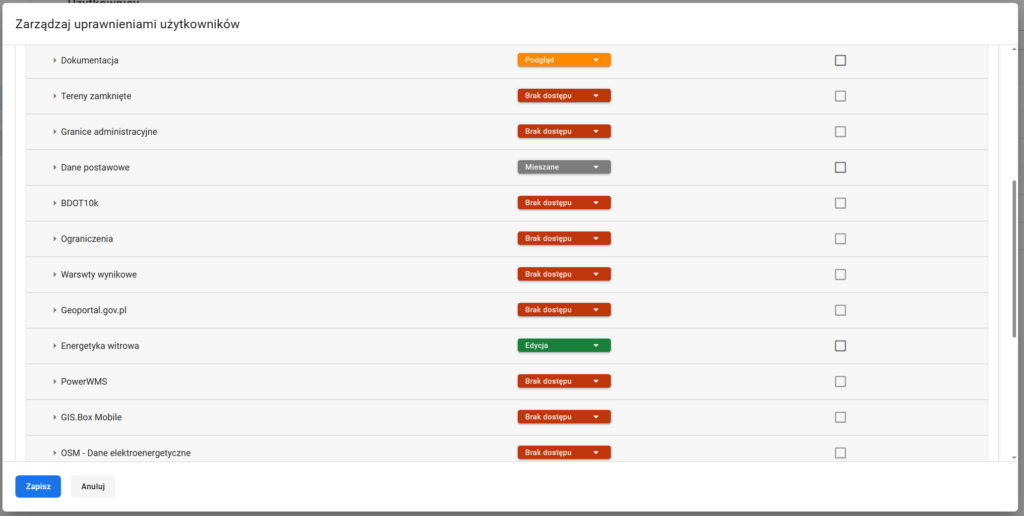
Managing Layer Permissions
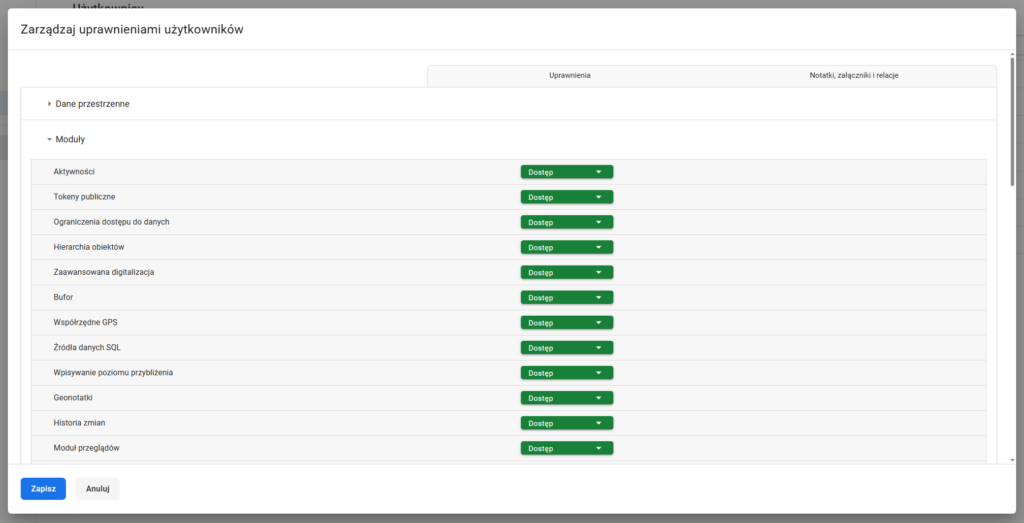
Managing Module Permissions
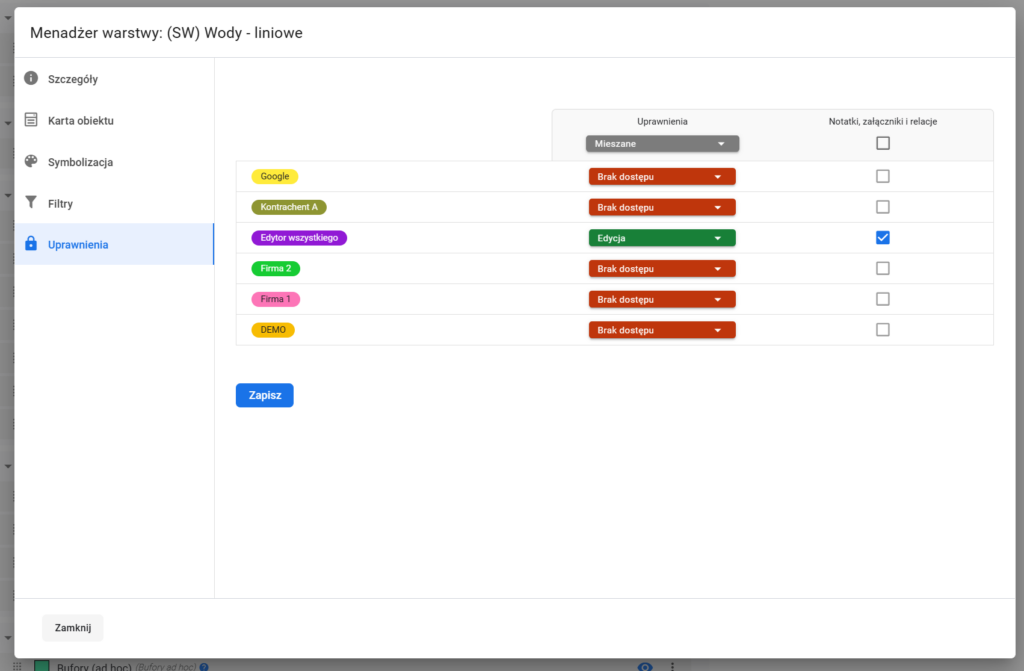
The second option, once all permissions for individual User Groups are configured, is to set permissions for a specific layer created in the system.
When creating any layer in the system, the user can assign it a name as well as specific permissions.