

 14
14 0
0 0
0 17 May 2024
The additional Postprocessing module allows you to define rules for filling object attributes and to run them on the User’s request.
In simple terms, this module makes it possible to:
- define that in the attribute “Distance from National Park” we want to store information about the distance to the nearest National Park… and
- run an automatic process that calculates this distance and fills the attribute
I encourage you to watch the video:
How to configure it?
- If you don’t have it, add an attribute with the desired name and type to the Data Source.
- Go to Modules -> Postprocessing
- Configure the rule:
- Click the Green Plus button
- Select the Data Source for which you want to define the rule
- Select the Attribute for which you want to define the rule
- Select the Driver (i.e. one of the mechanisms) and the additional Driver parameters. Currently, the available drivers are:
- Intersection – assigns a value based on another Data Source uploaded to the system
- ULDK – allows you to assign, for example, to a point information about the voivodeship, county, municipality, cadastral unit, sheet, and plot number where it is located
- WMS – assigns a value from the object information available in a WMS
- Join – retrieves the attribute value from another layer based on a join
- Find Nearest – enters the distance in meters between the object and the nearest object from the selected layer
- Optionally, you can select a formula, which determines how the tool’s result will be saved in the Attribute. For example: ({{distance}}/1000)::Numeric(10,2) || ’ km from ’ || layer.name
- Click Add.
Formulas in the Find Nearest driver
By default, the tool’s result is in meters with 10 decimal places. This is not very practical, so the administrator can define how this result will be saved in the attribute. For example, the formula: ({{distance}}/1000)::Numeric(10,2) || ’ km from ’ || layer.name means:
Divide the result in meters {{distance}} by 1000 (to get the value in kilometers) and round it to two decimal places. Then concatenate (the || operator joins texts) with the text ‘km from’ and the value of the name attribute from the layer for which the distance is calculated. For example, after applying this formula, the attribute will be saved as: “34.56 km from Poznań Power Station.”
Retrieving object information from WMS
Example of use:
We want to assign the cadastral plot registration number, which is available in the KIEG WMS service, but is not provided by the ULDK service.
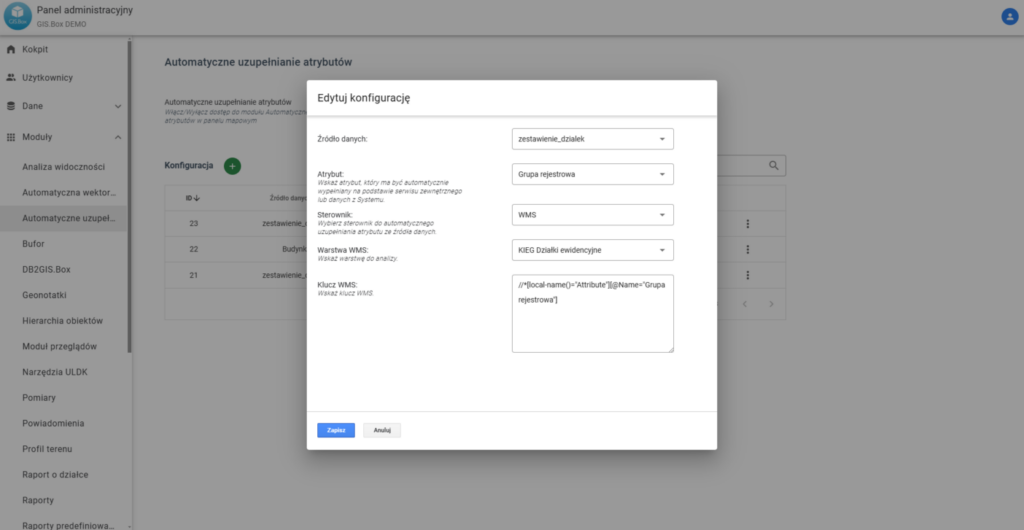
The WMS key refers to the information returned by the specific WMS service.
Example of retrieving the registration group information from the KIEG WMS:
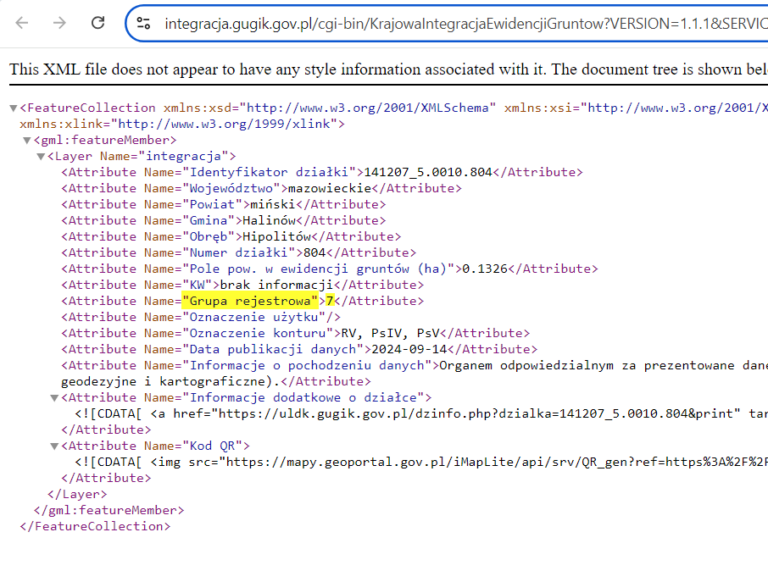
WMS Key Value:
//*[local-name()="Attribute"][@Name="Grupa rejestrowa"]
When saving, remember to format the text correctly with quotation marks.
Assumptions:
1. Multiple results: If the query returns multiple results, the values will be joined with commas.
2. Type conversion: If the retrieved values cannot be converted to the appropriate type (e.g. numeric), the attribute will be filled with a NULL value.
How to use it?
- Open the Layer Attribute Table
- Select The Objects
- Open the Editing Panel
- Click on the Postprocessing tool
- Select the Attributes you want to fill.
- Click the Fill button
- Wait a few moments.