

 21
21 0
0 0
0 28 May 2024
This is a security feature that reduces the risk of unauthorized access to the System and does not require any external software.
For 2FA to work correctly:
- each user must have an assigned email address
- Usemaps must have email sending configured
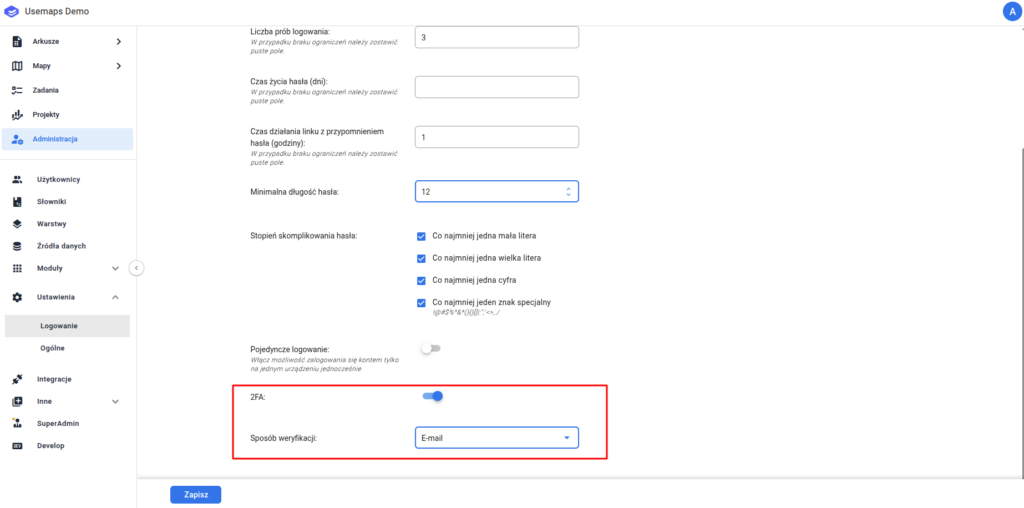
To enable 2FA:
- Log in as the Administrator
- Go to: Administration-> Settings-> Login
- Select 2FA and choose a verification method (e.g. Email)
How does 2FA work in Usemaps for the user?
- In the Login Panel, the user enters their login and password and clicks “Log in”
- Next, Usemaps sends an email with a 6-digit code to the email address assigned to the User
- The user will be taken to the next panel, where they can enter the received code
- Only after entering the code will the user be successfully logged in and taken to the Map Panel.
Notes:
- Once activated, this functionality applies across all access levels: via browser, desktop, and mobile.