

 15
15 0
0 0
0 23 May 2022
Access to Usemaps is only available to logged-in users. User accounts are created by the Administrator.
When accessing the main System address, the user will see the Login Panel. In the basic configuration, the user must enter a login and password, after which they will be taken to the last page they visited in the System. If Two-Factor Authentication (2FA) is enabled, the user must also enter the code received by email or SMS.
- The user can recover or reset their password.
- It is possible to configure access using OAuth2
- The System can enforce the organization’s password policy by specifying detailed rules for passwords set by users in the Login Settings.
- The Administrator can block a user manually in the Administrator Panel, or a user can be blocked automatically after exceeding rules set by the Administrator (e.g., number of failed login attempts)
User and Permission Management.
Managing Users and their Permissions in the System can only be performed by the Administrator in the Administrator Panel under the Users tab and is based on:
- individual User accounts, and
- User groups, which are assigned permissions to access Layers and tools.
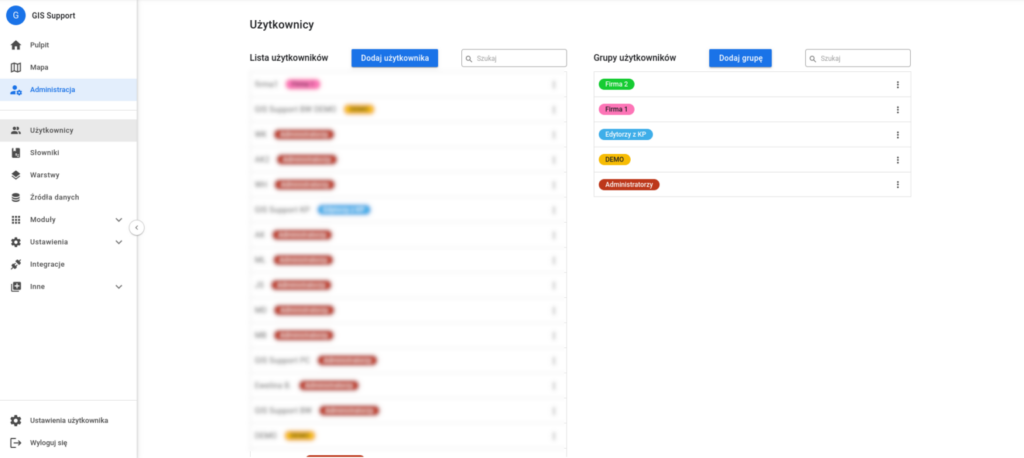
The general principle of operation is as follows:
- First, User Groups are created (e.g. editors, customer service department, external company)
- Next, permissions are defined for these groups (e.g., editors can edit everything, the customer service department can view everything, and an external company has view access to selected layers and no access to the rest)
- Only at the very end are individual users added, along with their assignment to a specific User Group.
Other articles:
- How to add a new user?
- How to add a User Group?
- Go to: Administrator Panel -> Users
- In the User Groups section, click “Add Group”
- In the new window, enter the group name and select its color.
- Click Save
- How to assign appropriate Permissions to a User Group?
- How to delete a User?