 83
83 0
0 0
0 1 November 2021
With the popularity of various geoportals (led by geoportal.gov.pl), the use of WMS is becoming increasingly common, a method for displaying spatial data provided by geoportals in your own Systems.
This is very useful because by adding a trusted service URL (e.g., KIEG), we gain access to data that we don’t have to update ourselves. The data is managed and updated by the providing institutions.
Before you start
- A new WMS Layer can only be added by an Administrator. If you do not have Administrator permissions, contact someone who does and ask them to add the WMS layer to the System, then load it into your project.
- The WMS layer must be provided in the Web Mercator coordinate system (EPSG:3857). If the service provider does not publish the WMS in EPSG:3857, depending on the implementation, it may be possible to use GeoServer.
- However, it may turn out that, for example, a county WMS address published by the provider in EPSG:3857 suffers from internal issues. For example:
WMS is published in:
EPSG:2180 – objects display in QGIS
EPSG:2178 – objects display in QGIS
EPSG:3857 – objects do not display in QGIS
In such an exceptional case, we recommend using the national integrations KIEG and KIUT. - Obtain the WMS address you want to add to the System. (It can be, for example, this one: https://sdi.gdos.gov.pl/wms from the General Directorate for Environmental Protection).
Instructions for the Administrator
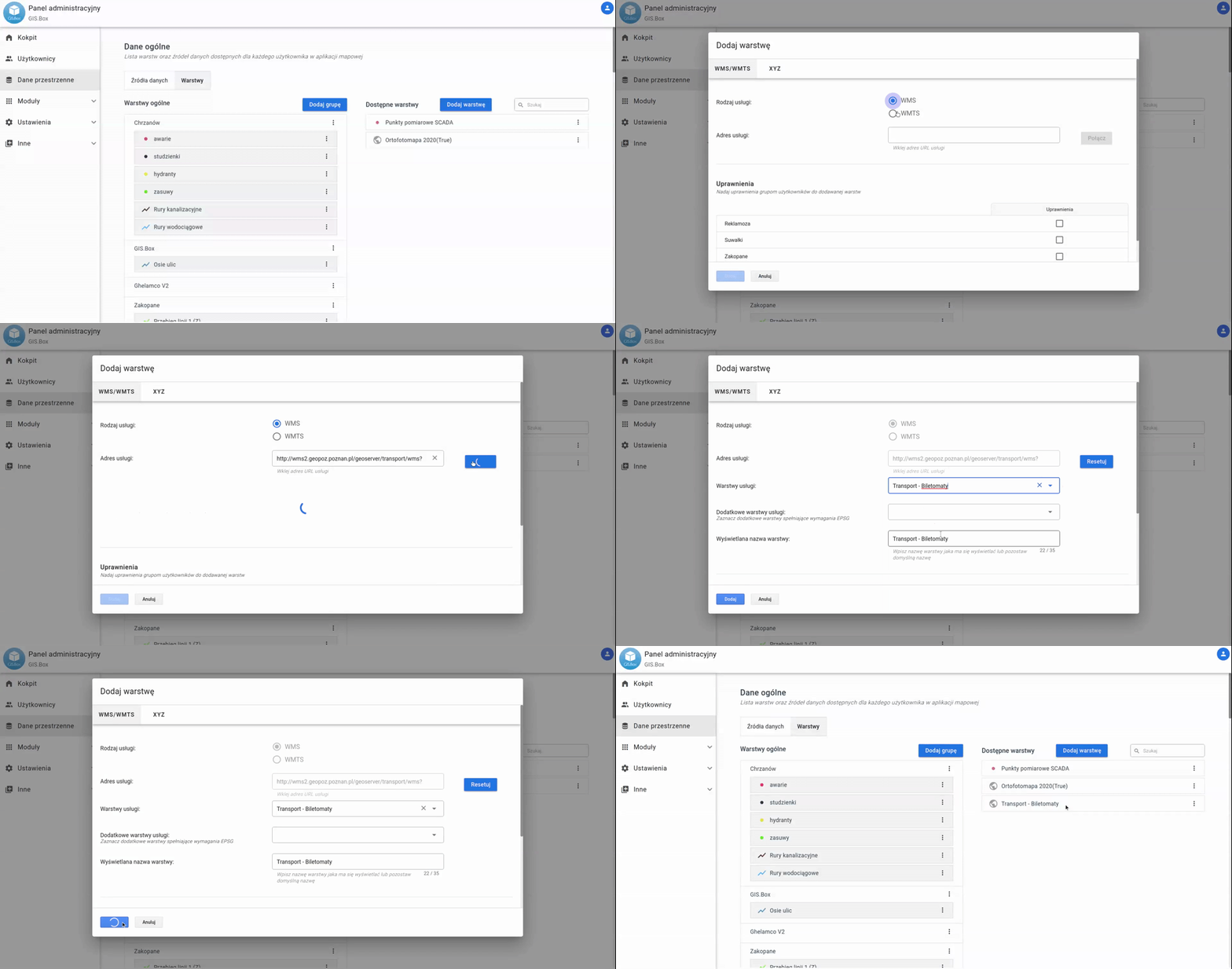
- Go to the Administrator Panel > Layers.
- Click the “Add Layer” button and select “WMS/WMTS/XYZ.” A new window for adding a Layer will open:
- Service type: select WMS.
- Service URL: Paste the WMS address obtained earlier and click Connect. The System will now query the service for available Layers.
- Service Layers: Select the layer you are interested in.
- Additional service layers: you can select additional layers to be combined with the first chosen layer. (For example, National Parks and Landscape Parks, which are published separately, can exist as a single layer in your System).
- Display Name: assign an appropriate name by which you will identify the new layer in the System.
- Assign the new layer to a Layer Group
- Assign permissions to the layer for User Groups.
- Click Add to add the layer to the System.
- From now on, the WMS Layer is available in the Layer Manager for Users who have permissions for it.