

 27
27 0
0 0
0 13 November 2021
The purpose of using dictionaries is to maintain data consistency by limiting the ability to enter arbitrary data. With dictionaries, when editing or adding an object, you can only select values from a predefined list.
Basic Information
- Dictionaries are lists of values for a given Type, which can be added as an Attribute value.
- Dictionaries are managed by the System Administrator.
- Optionally, a color can be assigned to each value in the Dictionary.
- A Dictionary assigned to an Attribute appears in multiple places, for example, during filtering.
- It is important to carefully plan the dictionary policy before starting to edit data. Later changes will require mass updates of attribute values.
- Dictionaries are independent of the data. They are created in Administration > Dictionaries. The same dictionary can be “assigned” to multiple attributes across multiple Sources.
- Dictionaries are assigned to Data Sources, not to Layers (see the differences between a Source and a Layer). All Layers created from the same Source inherit the assigned Dictionaries. This helps maintain data consistency.
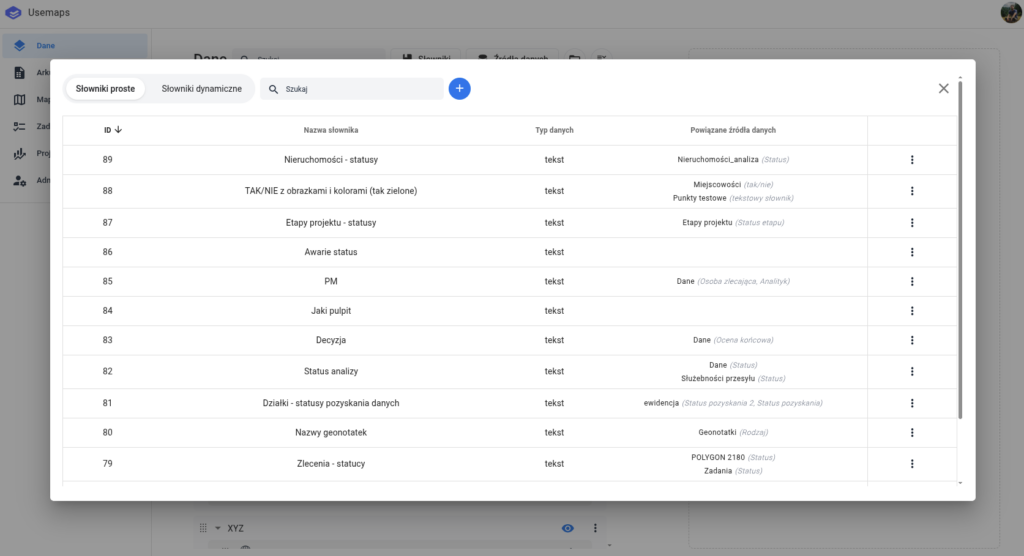
Types of Dictionaries
The System distinguishes between:
- Simple Dictionary – a closed list of values created and managed by the Administrator. This is the most commonly used option.
- Dynamic Dictionary – created based on a Data Source. This option is used for special purposes.
Use Cases
1. How to create a dictionary in Usemaps?
To add a new dictionary, you should:
- Go to: Data. Click on Dictionaries
- Click the blue plus icon, then “Add Dictionary.” A new window will open:
- Dictionary Name: enter the name of the dictionary.
- Data Type: specify the Data Type (the dictionary’s data type must match the Attribute’s data type. You cannot use values like “YES” and “NO” in a dictionary assigned to a field meant for numbers).
- Fill in the dictionary values. Add as many as needed.
- [Optional] A color can be assigned to dictionary values.
- [Optional] An image can be added to dictionary values.
- Click Save.
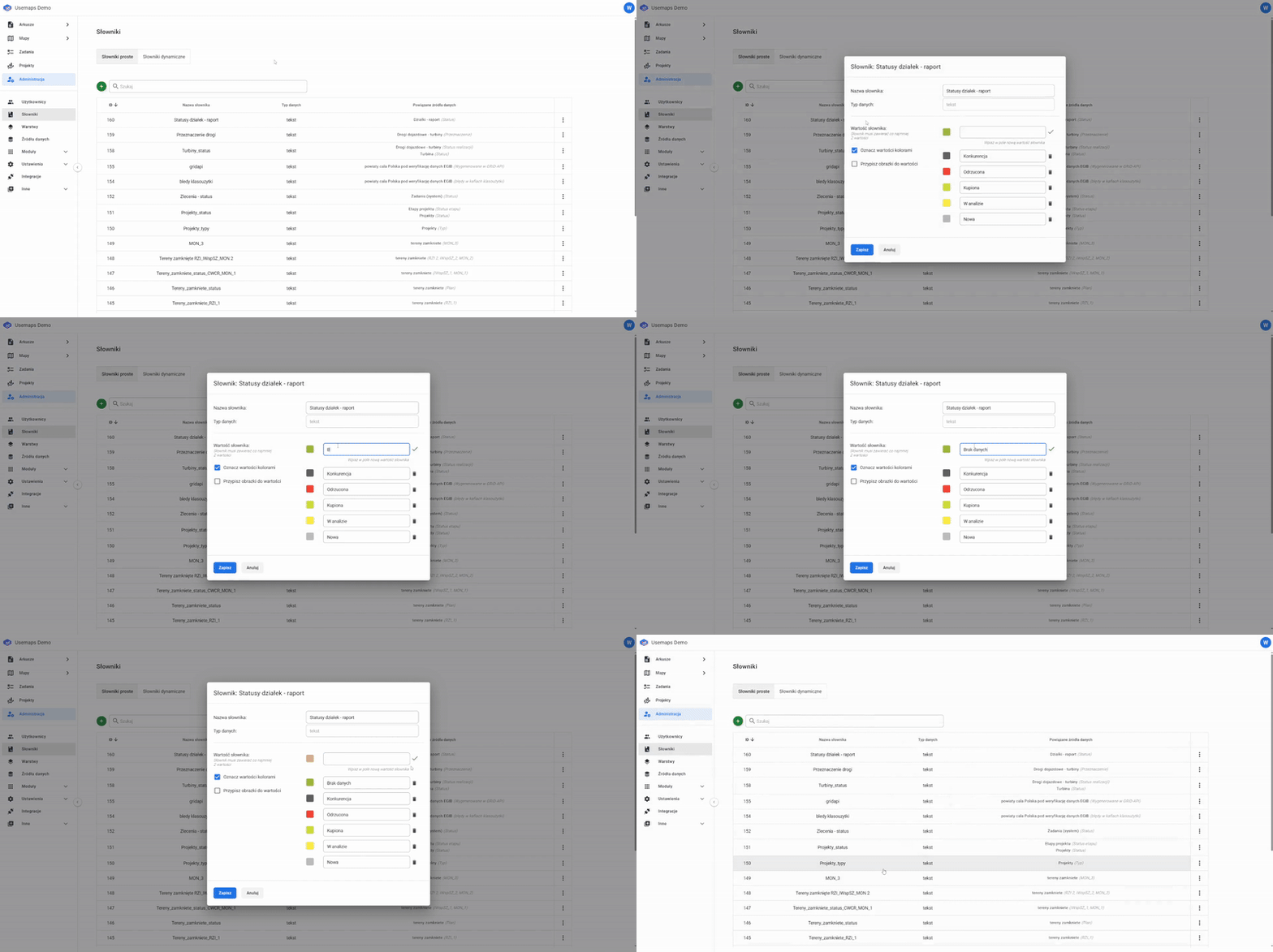
2. How to edit a dictionary and manage its values?
To edit an existing dictionary:
- Click the three-dot menu next to the dictionary name.
- In the opened window, add, delete, or modify dictionary values.
- Click “Save”
Note!
If a dictionary is linked to an attribute and a value is already used in the attributes, it cannot be deleted or edited. You must first remove that value from the objects’ attributes.
3. How to “assign” a Dictionary to an Attribute?
- In the Data panel, click on the name of the Data Source. The Data Source Manager will open.
4. How to create a dictionary based on existing attribute field values?
Sometimes we want to generate a dictionary based on an existing attribute that already contains values. For example, in a created layer, there may be a ‘Status’ field where users entered values such as: “To Do,” “Completed,” “Cancelled,” “In Progress.” During work, it may become necessary to convert this attribute into a dictionary so that the same value does not have to be entered manually each time, but can be selected from a dropdown list. To do this, in the Administrator panel, you need to import a dictionary from the existing Data Source.
Procedure:
- Go to: Data > Dictionaries
- Click the blue plus icon, then select the “From Data Source” option from the list.
- A new window will open, where you should: assign a dictionary name, select the data source of the layer, and indicate the attribute name in which the values were entered.
- A newly generated dictionary will appear in the list of dictionaries. To open it, click on it.
- Finally, assign the dictionary to the appropriate layer attribute. To do this, go to Data Sources and then to Attribute Management.
Notes
When editing a dictionary, you cannot delete a value that is currently used in the data, as this would cause inconsistencies. If you want to remove a value from a Dictionary, you must first replace it everywhere it is used.
For example, if you have a dictionary with the values “Yes,” “No,” and “I don’t know,” and the value “I don’t know” is used in the data, you will not be able to delete it. First, go to the layer and change all occurrences of “I don’t know” to another desired value (for example, using Mass Attribute Update), and only then delete the “I don’t know” value from the dictionary.