

 0
0 0
0 0
0 10 May 2024
Simple Formulas are formulas that define automatic filling of attribute values. Attributes with a defined formula become locked for manual editing. The formula is recalculated every time the object is edited and also when the coordinate system of the data source is changed.
Important:
- Simple Formulas can only be used for calculations within a single attribute. To automate calculations across multiple attributes and layers, Advanced Formulas should be used.
- Before adding an attribute with a Simple Formula (a virtual attribute), make sure that the data source you are editing has the correct coordinate system.
- How to change the coordinate system of a Data Source?
- The default coordinate system for newly created data sources in the web version of the System is Mercator (EPSG:3857). If you choose to stay in this coordinate system but still expect correct attribute values, such as segment length, it is important to either use a function that transforms coordinates to the application’s coordinate system (appropriate for your location’s coordinate system: PL-2000).
- When creating virtual attributes, you should use the system field names, for example:
nazwa_custom
What is this used for?
This is a great tool when you need always up-to-date data for frequently edited objects, for example attributes like length, area, perimeter, or X and Y coordinates. A Simple Formula attribute can also be used for labeling layers, allowing this information to be included in prints.
Using Simple Formulas simplifies and supports daily analytical work or the creation of statistics. For numeric values, it is recommended to choose the attribute data type: real number.
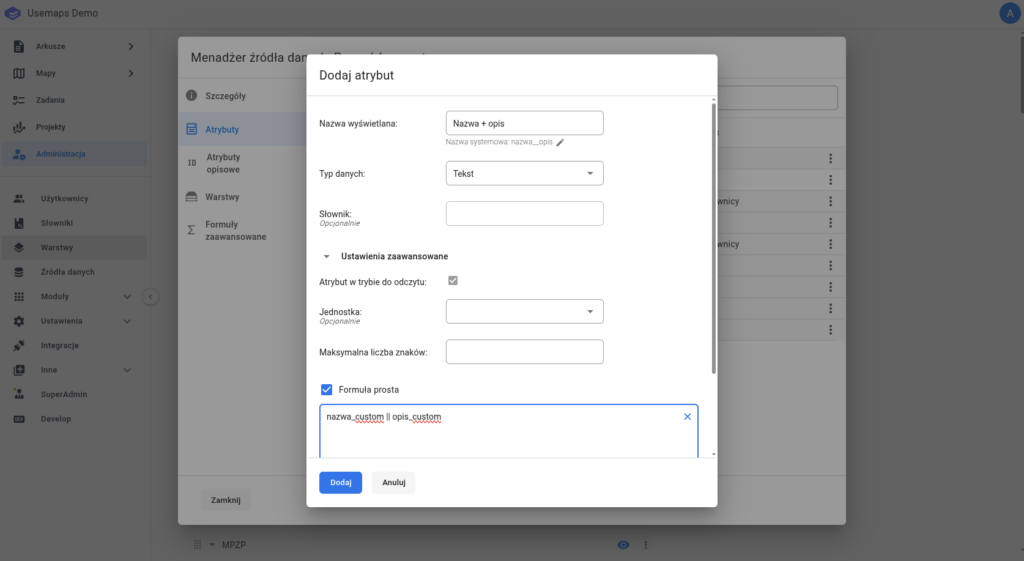
Examples of formulas:
- Combining values, i.e., concatenation of fields, for example Name and Description
nazwa_custom || opis_custom - Adding/subtracting/multiplying/dividing the values of fields A and B:
A + B/A - B/A * B/A / B - Maximum/minimum/average/sum of field A:
MAX(A)/MIN(A)/AVG(A)/SUM(A) - ST_X(geom) – the formula returns the X coordinate of a point in the data source’s coordinate system
- ST_Y(geom) – the formula returns the Y coordinate of a point in the data source’s coordinate system
- ST_Y(ST_Transform(geom,4326)) – the formula returns the Y value – or X if changed to ST_X() – for a point in the EPSG:4326 (WGS84) coordinate system.
- ST_Length(geom) – the formula returns the length of the object in the units of the data source’s coordinate system
- ST_Length(geom)::Numeric(10,2) – a variant of the above formula that returns the length in the coordinate system’s units, rounded to two decimal places
- ST_Perimeter(geom) – a formula that returns the perimeter of a polygonal object, given in the units of the layer’s coordinate system (usually meters)
- ST_Area(geom) – the formula returns the area of the object in the units of the coordinate system
- (ST_Area(geom)/10000)::Numeric(10,4) – a variant of the above formula that returns the area in hectares, rounded to four decimal places, with the data type set as real number
- ‘https://openinframap.org/#14.04/’ || CAST(ST_Y(ST_centroid(ST_Transform(geom,4326))) AS varchar(20)) || ‘/’ || CAST(ST_X(ST_centroid(ST_Transform(geom,4326))) AS varchar(20)) || ‘/L,P,S’ – a formula that creates a link to the OpenInfrastructureMap portal, zooming to the centroid of the polygon.
What happens if, when trying to save an attribute using a Simple Formula, the System returns an “invalid content” message to the user?
Due to the variety of user data sources and layers, we recommend that if you receive such a message, you first replace the term geom in the formula with geometry.