

 0
0 0
0 0
0 25 April 2023
The batch print function allows you to generate a series of maps on consecutive sheets along the path indicated on the map.
The functionality is available under the Printer tool icon on the Toolbar. From the available print tools, select Batch print.
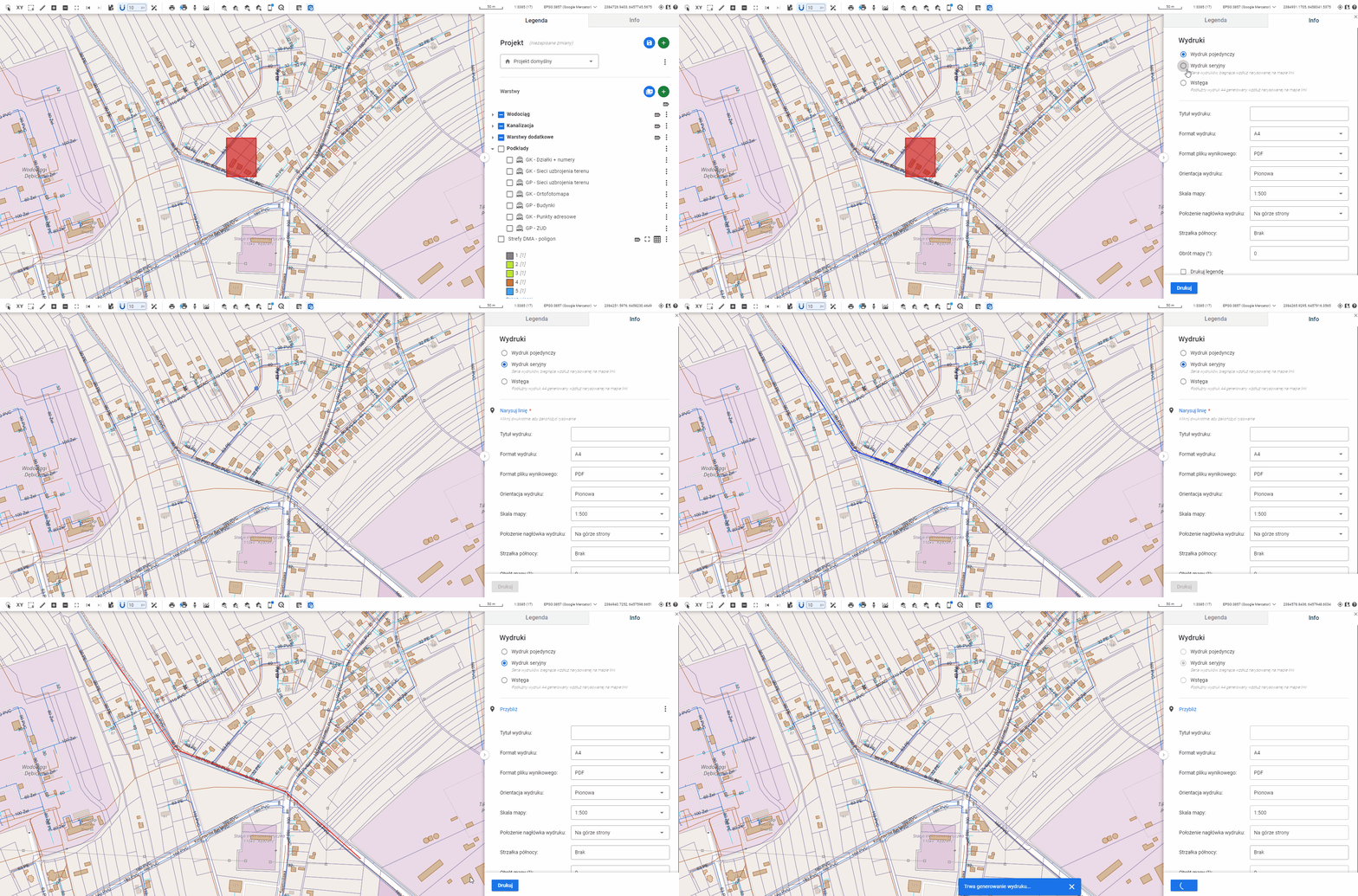
The most important step when performing a batch print is to draw the print path line in the map window. To do this, click the phrase “Draw line”. This will start the drawing process in the map window. Next, click at the starting point of the print, and then indicate the subsequent nodes of the line with additional clicks. To finish drawing the segment, double-click at the location of the last vertex. If the operation has been completed correctly, the line will change its color to red. The line defines the area based on which the map sheets will be generated. Additionally, the following print parameters are available:
- Print title
- Print format
- Output file format
- Print orientation
- Map scale
- Print header position
- North arrow
- Map rotation
The parameters can be changed before or after drawing the print path.
You can also add additional elements to the map, such as:
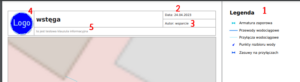
- Print legend (1)
- Print generation date (2)
- Print the name of the user who generated the print (3)
- Print application logo (4)
- Print information clause (5)
The result of this functionality is a series of prints in the selected format, generated on separate sheets that cover the entire area along the drawn line.