

 3
3 0
0 0
0 11 November 2021
The Maps Panel is a list of all maps that the User has access to.
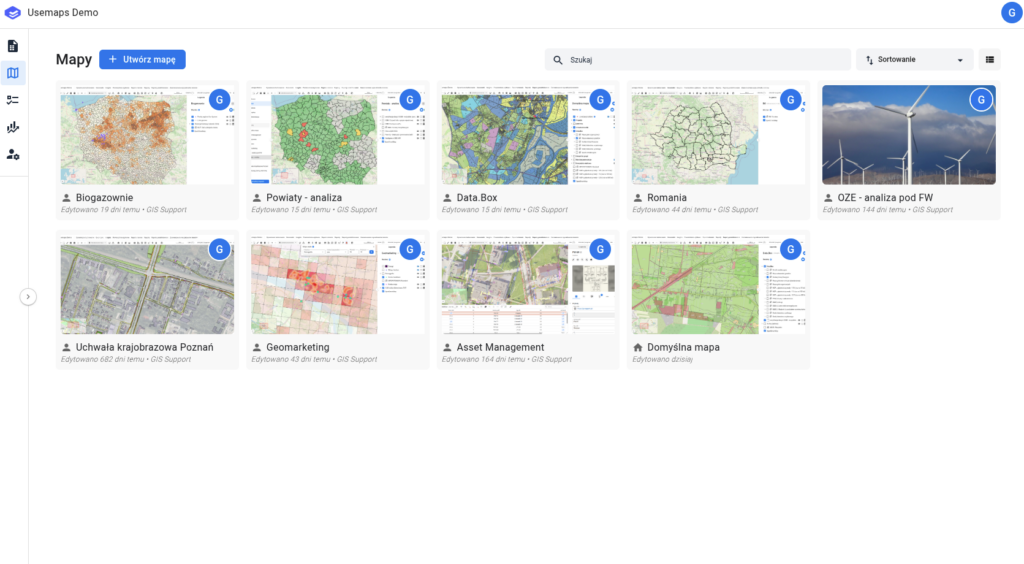
Definitions
- Default Map – The Default Map is prepared by the Administrator. Users cannot modify it (e.g., by adding new layers through the Layer Manager or changing layer styles in the Symbolization Manager). The Default Map serves as the main, and often the only, composition for most Users.
- Predefined Map –
- A Predefined Map meets the need for having maps that are available to all users in the system. The Administrator configures a predefined project that will be used by all users. For example, an industry-specific project: “Sewerage.”
- Available to all users of the system
- Created and managed by all administrators
General rules:
- During configuration, the Administrator creates the so-called Default Map, which is a set of layers with default symbolization, serving as the initial setting for all Users.
- No User can change the settings of the Default Map. Only the Administrator can do this.
- To work on their own map, the User should use the “Copy” tool. After clicking it, the User will be prompted to enter a name for the new composition. Once changes are saved, the User can freely add layers and modify the Symbolization.
- After creating a composition, the User can share it with another User.
- A User who has been shared a map cannot edit it (cannot add new layers or change their styles). To make changes, they must save it as their own map.
- It is recommended to limit the number of layers for clarity and performance – the maximum recommended number of layers in a composition is 20–25.
Frequently Asked Questions:
- How to create a new Map?
- In the Maps Panel, click the “Create Map” button.
- In the new window, enter the name of the Map.
- Click “Create”.
- The new Map will be created and opened.
- How to share a Map with another User?
- Click the share icon in the bottom-right corner of the Map tile
- In the new window, select the user (or multiple users) with whom you want to share the Map.
- Click “Share”.
- The User you share the Map with will be able to open it from the list of available Maps. However, if the User wants to edit it, they must first copy and save it as their own.
- How to mark a Map as Predefined?
- From the three-dot menu, select “Mark as Predefined”
- The System will ask for confirmation, noting that the marked composition will become visible to all Users
- A Map marked as Predefined is now visible to all users.
- A Predefined Map is marked with a star on the list.
- How to remove the Predefined status from a Map?
- As an Administrator, select the Predefined Map and, from the three-dot menu, choose “Remove Marking.”
- The System will ask for confirmation to remove the Predefined status from the Map.
- Click “Unmark”.
- Removing the Predefined status means that the Map will no longer be visible to all system users and will return to the pool of Maps of the User who created it.
- Can a Predefined Map be set as the Default Map?
- Yes.
- Can an Administrator edit a Predefined Map created by another Administrator?
- Tak.
- Can a regular User edit a Predefined Map?
- A regular User cannot edit Predefined Map Compositions.